DVD Easter Eggs | Software | Movies | Music | TV | Books | Art Bloopers | Drink Recipes
[Eeggs.com Logo] The Easter Egg ArchiveTM
EEGGS.COM
Google
Web eeggs.com
Home > Software > Application Software > Adobe Photoshop CS2 Easter Eggs Add an Egg | Help | Discussion
   
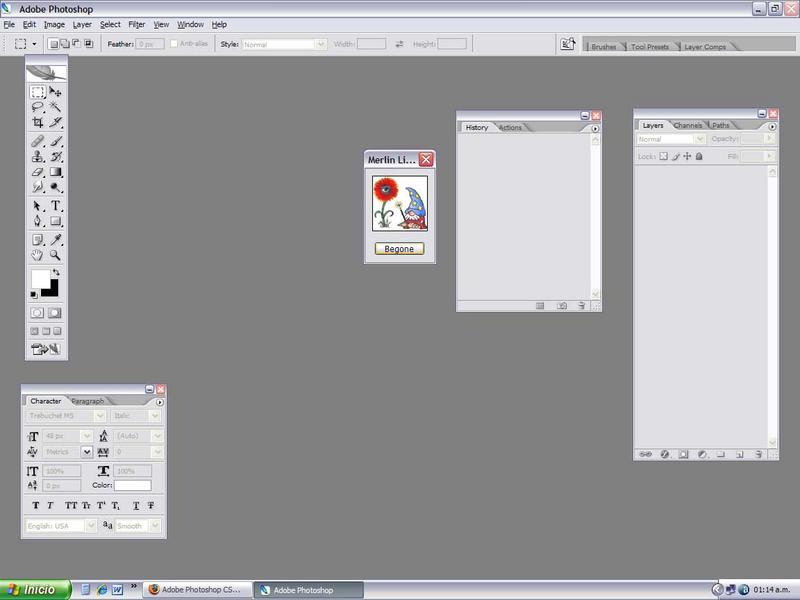
Adobe Photoshop CS2 - Merlin Li...
1. Open Photoshop.
2. Open the Layers|Channels|Paths window (at least one of them)
3. Press the ALT key and hold it down. (Option Key on the Mac)
4. Click the right-arrow options button in the top-right of the Layers window, but hold the mouse button down or the menu will disappear.
5. Still holding down both the ALT key and the left mouse button, move your mouse over "Palate Options...", and let go of the mouse.
6. Merlin!
Special Requirements:
Adobe Photoshop CS2
Avg. Rating:    8.6 of 10 - (66 votes cast)
Your Rating:   
Contributed By:
Anonymous on 01-30-2007
Reviewed By:

Pictures Click on the thumbnails for a full-size image, or send in your own
German PS on a Mac. Roughly translated, says: Merlin in Photoshop CS2 for Windows Merlin Li
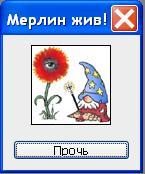
German PS on a Mac. Roughly translated, says: "Merlin lives" and "Go away" Merlin in Photoshop CS2 for Windows Merlin Li
Merlin Lives ps cs2 merlin Win2k, CS2 PT-BR
Mago Merlino in Italian Russian Merlin (from PhotoshopCS3) added by euGGen
Comments:
Miss Bissle writes:
It works in Photoshop CS as well on a Mac without the use of a right or left mouse button. Holding down the mouse, pull down the side menu of the Layer/Channels/Paths "floating" window. Go down to the palette window and press down the option and CONTROL button on your keyboard (not Command, though you can hold that down too if you like). Let go of the mouse, keep the option and control button down. He's cute!
7 of 10 people found this comment helpful. Did you? Yes
Johnnyvirus writes:
I like this egg!!! Brilliant. Works just fine with CS3. His toes make me laugh too hard!!!
4 of 4 people found this comment helpful. Did you? Yes
Husky writes:
This easter egg also works in Photoshop CS3.
5 of 7 people found this comment helpful. Did you? Yes
apzrman writes:
Works with photoshop CS3 aswell
3 of 5 people found this comment helpful. Did you? Yes


Register - My Settings - FAQ - Privacy Policy - About Us - Contact Us